How to Extract Data from Invoice PDFs (3 Easy Methods)
The fastest way to extract data from an invoice PDF is to use an AI extraction tool — upload the PDF, and AI reads the vendor name, invoice number, line items, and totals in seconds. For one-off invoices, copy-paste works. For high volume (50+ invoices/month), AI automation cuts processing time by over 80%.
Short answer:
The fastest way to extract data from invoice PDFs is using AI-powered extraction that reads the full invoice automatically—returning structured header, line items, and totals with built-in math validation. This cuts processing time by 50% compared to manual entry.
For the full breakdown with 3 methods compared (including pros, cons, and when to use each), keep reading.
If you're manually typing vendor names, invoice numbers, line items, and totals from PDF invoices into spreadsheets, you already know the pain: one invoice takes 3–5 minutes, errors creep in after invoice #20, and you're dealing with 100+ different vendor formats.
I tested three approaches to extract data from invoice PDFs on a batch of 50 invoices with varying layouts—from simple single-page bills to complex multi-page invoices with nested line items. Here's what actually works.
What you'll learn:
- ✓Manual extraction workflow and when it makes sense
- ✓OCR tools (Google Cloud Vision, Adobe Acrobat) — strengths and limitations
- ✓AI invoice extraction that returns structured fields automatically
- ✓Before/after workflow comparison showing 50% time savings
- ✓Which method to use based on your invoice volume
3 Ways to Extract Data from Invoice PDFs
Method 1: Manual Data Entry (Copy-Paste)
This is where most teams start: open the PDF, select text, copy, paste into Excel or accounting software, repeat.
How it works:
- Open invoice PDF in a viewer (Preview, Adobe Reader, browser)
- Highlight vendor name, invoice number, date, amounts
- Copy and paste each field into your spreadsheet
- Manually recreate line item tables
- Double-check totals match
Pros
- + No software cost
- + Works on any PDF (even scanned images if you can read them)
- + Complete control over what data you capture
Cons
- - Time-consuming: 3–5 minutes per invoice minimum
- - Error-prone: Typos increase after 20+ invoices
- - No structure preservation: Tables become flat text when copied
- - Doesn't scale: 100 invoices = 5+ hours of tedious work
When to use manual entry:
Manual extraction makes sense if you're processing fewer than 10 invoices per week with simple layouts. Beyond that, the time cost and error rate make automation worthwhile.
You can extract invoice data instantly with Data Extractio—15 free credits, no credit card required. Upload your invoice PDF, let AI extract the structured data automatically, and export to Excel in under 30 seconds.
Method 2: OCR Tools (Adobe Acrobat, Google Cloud Vision)
Optical Character Recognition (OCR) tools scan PDFs and convert text into machine-readable data. This works for both text-based and scanned invoices.
Adobe Acrobat Pro:
- Open PDF in Acrobat Pro
- Tools → Text Recognition → In This File
- Export as Excel (File → Export To → Spreadsheet)
- Clean up formatting issues in Excel
Google Cloud Vision API:
- Upload invoice to Cloud Storage
- Call Vision API with document text detection
- Parse JSON response for invoice fields
- Write extracted data to your database/spreadsheet
Pros
- + Handles scanned invoices (images converted to text)
- + Adobe Acrobat is widely available
- + Google Cloud Vision offers high accuracy for typed text
Cons
- - Loses table structure: Multi-column line items get jumbled
- - Requires cleanup: Merged cells, misaligned columns, extra spaces
- - Inconsistent vendor formats: Works well on standard invoices, struggles with custom layouts
- - Cost: Adobe Acrobat Pro costs $19.99/month; Google Vision charges per page
- - Learning curve: API integration requires development work
Real-World Test: 50-Invoice Batch
I ran 50 invoices (mix of vendors: utilities, SaaS subscriptions, office supplies) through Adobe Acrobat's Export to Excel feature:
- Accuracy: ~85% of line items captured correctly
- Time per invoice: 2 minutes (export + cleanup)
- Major issue: Line items from different columns merged together (e.g., "Qty 5 Widget A $100" became "5Widget A100")
When to use OCR tools:
OCR is best if you're working with scanned/image-based invoices where text extraction alone won't work, AND you're comfortable cleaning up formatting issues afterward. For text-based PDF invoices with tables, AI extraction (Method 3) preserves structure better.
Method 3: AI Invoice Extraction (Data Extractio)
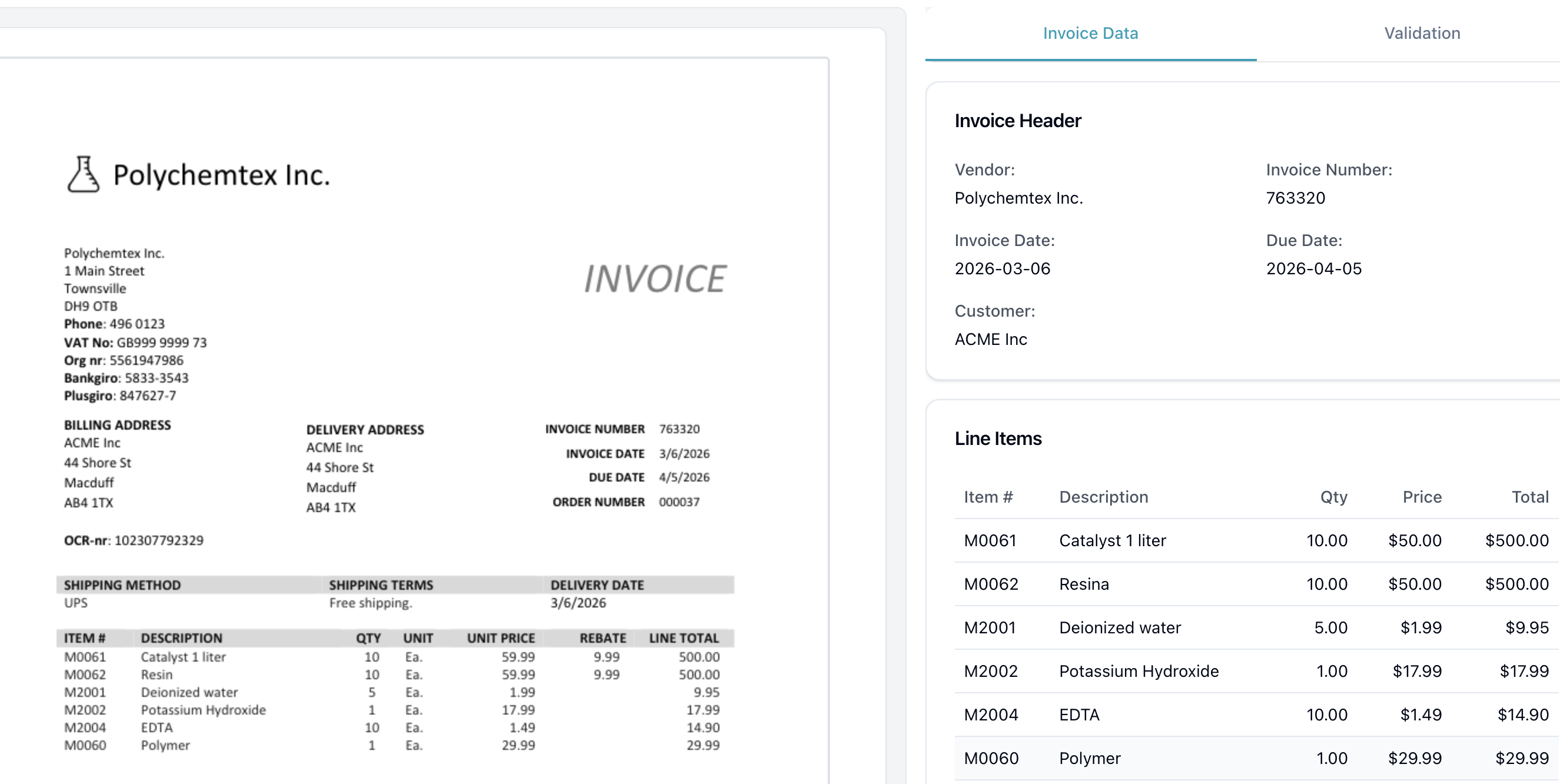
RECOMMENDEDAI-powered extraction reads your entire invoice automatically and returns structured data—no manual table area selection, no cleanup.
How it works:
- Upload invoice PDF from the Dashboard (drag and drop)
- Click "Process Invoices": AI reads the full invoice automatically and extracts all data (uses 1 credit per invoice)—no need to draw boxes or select table areas
- Review structured output:
- — Header: Invoice number, date, due date, vendor name, customer name, payment terms, currency
- — Line items: Item number, description, quantity, unit price, and line total per row
- — Totals: Subtotal, tax, shipping, discount, and grand total
- Check math validation: the tool automatically verifies each line total, subtotal sum, and grand total calculation—discrepancies are flagged before export
- Export to Excel or CSV
Why This Works Better for Invoices:
Zero setup per invoice:
There's no drawing boxes or configuring extraction modes. Upload and the AI extracts everything automatically—even from invoices you've never seen before.
Structured fields, not raw tables:
Table extraction gives you a grid of text. AI invoice extraction returns named fields: invoice number, vendor name, line totals—ready for direct import into accounting software without reformatting.
Math validation catches errors automatically:
After extraction, the tool checks all the arithmetic: each line item's quantity × unit price, the subtotal sum, and the grand total calculation. Issues are flagged before you export, catching misreads that would otherwise slip into your accounting records.
Batch processing with template learning:
After correcting an extraction, the tool learns from your edits and improves accuracy for future invoices from the same vendor. Upload multiple invoices at once and process them as a queue.
Before (Manual + OCR)
- Open invoice PDF (10 sec)
- Manually copy header fields (1 min)
- Export with OCR (30 sec)
- Clean up Excel formatting (2 min)
Total: ~3.5 minutes per invoice
After (AI Extraction)
- Upload invoice to Data Extractio (5 sec)
- AI extracts header, line items, and totals automatically (15 sec)
- Review structured data and export (15 sec)
Total: 35 seconds per invoice
Time savings: 51% per invoice. For 100 invoices/month, that's 5 hours saved.
Pricing
- Free plan: 15 credits (15 invoices)
- Starter plan: 100 credits/month ($8)
- Pro plan: 350 credits/month ($25)
- Enterprise plan: 1,000 credits/month ($69)
One credit = one invoice extraction. No per-page charges like API-based solutions.
Quick Comparison Table
| Method | Time per Invoice | Table Structure | Handles Scanned PDFs | Cost | Best For |
|---|---|---|---|---|---|
| Manual Entry | 3–5 min | ❌ Lost | ✅ If readable | Free | <10 invoices/week |
| OCR Tools | 2–3 min | ⚠️ Requires cleanup | ✅ Yes | $20–100/mo | Scanned invoices |
| AI Invoice Extraction | 35 sec | ✅ Preserved + structured fields | ❌ Text-based only | $8–69/mo | 20+ invoices/week |
Tips for Faster Invoice Data Extraction
1. Create Extraction Templates for Recurring Vendors
If you receive monthly invoices from the same vendors (utilities, software subscriptions), the tool learns from your corrections and builds a vendor-specific template. Next time you upload an invoice from that vendor, the extraction happens with one click.
2. Standardize Your Excel Output Format
Set up a master Excel template with columns for: Invoice Number, Date, Vendor, Line Item Description, Quantity, Unit Price, Total, Tax, Grand Total. Map extracted data to these columns consistently—this makes downstream accounting imports easier.
3. Validate Totals Immediately
After extraction, check that line item totals sum to the invoice grand total. AI invoice extraction runs this check automatically—flag any discrepancies during the review step before exporting to prevent accounting headaches later.
4. Batch Process by Due Date
Sort invoices by payment deadline and extract them in batches. This keeps your accounts payable workflow organized and reduces context-switching.
Frequently Asked Questions
How accurate is automated invoice data extraction?
For text-based PDF invoices with clear table formatting, automated extraction accuracy is 95–98%. The most common errors are with unusual vendor formats (e.g., rotated text, watermarks overlaying tables). Catching them during the review step prevents accounting headaches later.
Can I extract data from scanned invoice images?
The AI invoice extraction feature works with text-based PDFs only. If your invoices are scanned images, use OCR tools such as Adobe Acrobat (Method 2) to convert them to searchable text first, then process the resulting PDF.
What invoice formats are supported?
Data Extractio supports standard PDF formats. Multi-page invoices are fully supported—the AI reads all pages and consolidates header, line items, and totals automatically.
How do I handle invoices with inconsistent layouts?
AI invoice extraction handles layout variations automatically—it reads the full invoice rather than relying on fixed table positions. For recurring vendors with unusual formats, the tool learns from your corrections and improves accuracy for future invoices from the same vendor without any manual reconfiguration.
Is my invoice data secure during extraction?
Yes. Data Extractio uses encrypted connections (HTTPS/TLS) for all data transfers and stores files on Supabase's enterprise-grade infrastructure with encryption at rest. We're GDPR and CCPA compliant—you have full control over your data and can delete extractions anytime from the Recent Results page. Your files remain private and are never used to train models or shared with third parties. For details, review our privacy policy.
Which Method Should You Use?
Choose manual entry if:
- — You process fewer than 10 simple invoices per week
- — You need zero software cost
- — Accuracy is more important than speed
Choose OCR tools if:
- — You're extracting data from scanned/image invoices regularly
- — You already have Adobe Acrobat Pro or cloud budget for Vision API
- — You're comfortable with JSON parsing (for API-based OCR)
Choose AI invoice extraction if:
- — You process 20+ invoices per week
- — You need structured fields (invoice number, vendor, line items, totals) ready for accounting software
- — You want math validation to catch extraction errors automatically
- — You handle multiple vendor formats without per-vendor setup
For most businesses processing invoice data regularly, AI extraction delivers the best balance of speed, accuracy, and cost. The 50% time savings compound quickly when you're handling 50–200 invoices monthly.