How to Copy a Table from PDF to Excel (6 Methods Tested)
Short answer:
The fastest way to copy a table from PDF to Excel without losing formatting is Data Extractio — upload your PDF, select the table, and download a clean Excel file in under 30 seconds. For a free built-in option, use Excel's Power Query (Data > Get Data > From PDF).
You copied a table from a PDF into Excel. The columns collapsed. Numbers merged with labels. Headers vanished. Now you're spending more time fixing the spreadsheet than you would have spent retyping it.
This happens because PDFs store text as positioned characters, not structured cells. When you paste into Excel, it has no idea where one column ends and the next begins.
I tested 6 different ways to copy a table from PDF to Excel — from manual workarounds to dedicated tools — and measured each on speed, accuracy, and cost. Here's what actually works.
What you'll learn:
- ✅ Which method keeps your formatting intact
- ✅ How to handle scanned PDFs (where copy-paste is impossible)
- ✅ Free options vs. paid tools — honest cost breakdown
- ✅ A troubleshooting guide for common formatting disasters
Method 1: Direct Copy-Paste (Free — But You'll Hate It)
The first thing everyone tries. Select the table in your PDF viewer, Ctrl+C, switch to Excel, Ctrl+V.
Steps:
- Open the PDF in any viewer (Adobe Reader, Chrome, Preview)
- Click and drag to select the table
- Copy with Ctrl+C (Cmd+C on Mac)
- Open Excel and paste with Ctrl+V
What actually happens: All the data dumps into a single column. Or worse — cells merge randomly, numbers lose their decimal places, and multi-line cells split across rows.
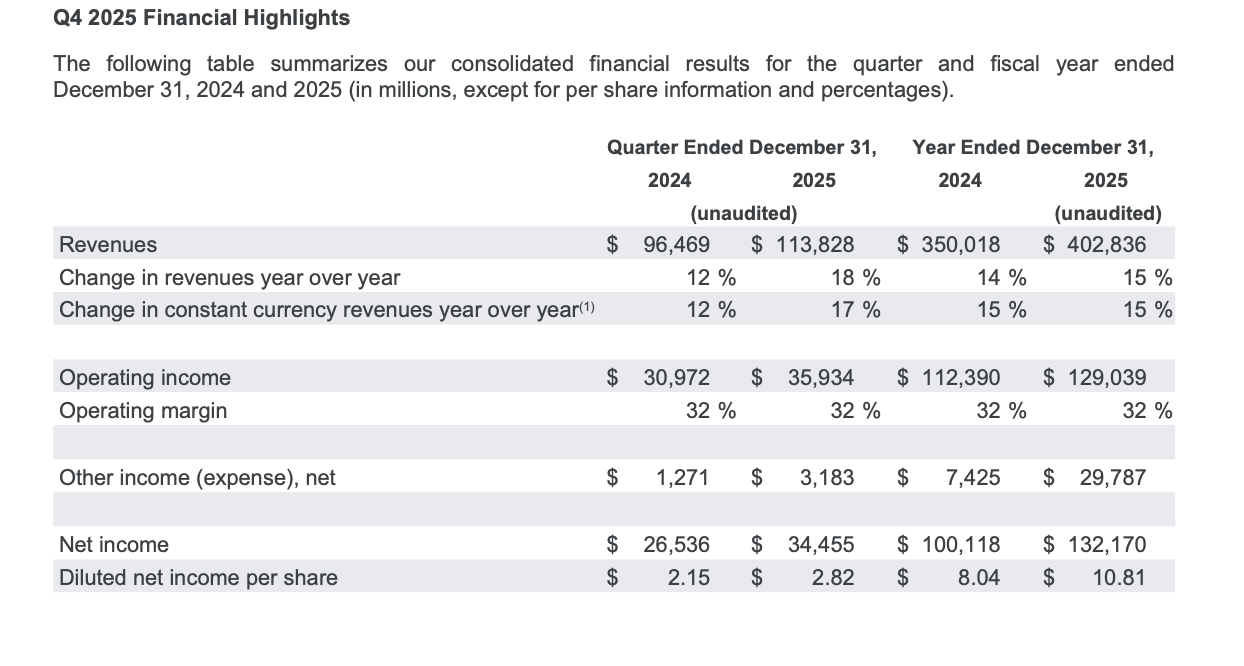
Original PDF table
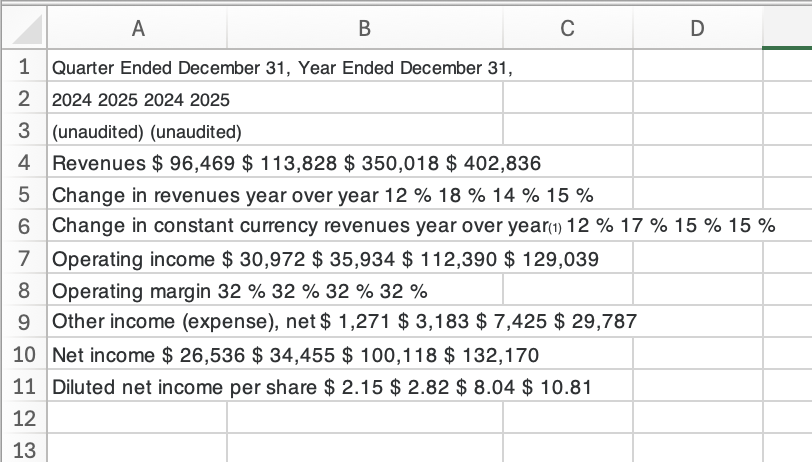
After pasting into Excel
When it works: Single-column data or very simple two-column tables with no merged cells.
When it fails: Anything with more than two columns, merged headers, currency symbols, or multi-line cell content.
| Speed | Accuracy | Cost | Scanned PDFs |
|---|---|---|---|
| 1 min | Low | Free | No |
Verdict: Only use this for the simplest tables. For anything else, you'll spend more time fixing than extracting.
Want to skip the formatting headaches entirely? Data Extractio handles complex tables in 30 seconds — 15 free credits, no credit card required.
Method 2: Excel Power Query (Free — Windows Only)
Excel has a built-in PDF importer that most people don't know about. It reads the table structure directly from the PDF file, so formatting stays intact.
Steps:
- Open Excel (Windows — Microsoft 365 or Excel 2016+)
- Go to Data > Get Data > From File > From PDF
- Select your PDF file
- Excel shows detected tables in the Navigator pane
- Pick the table you want and click Load
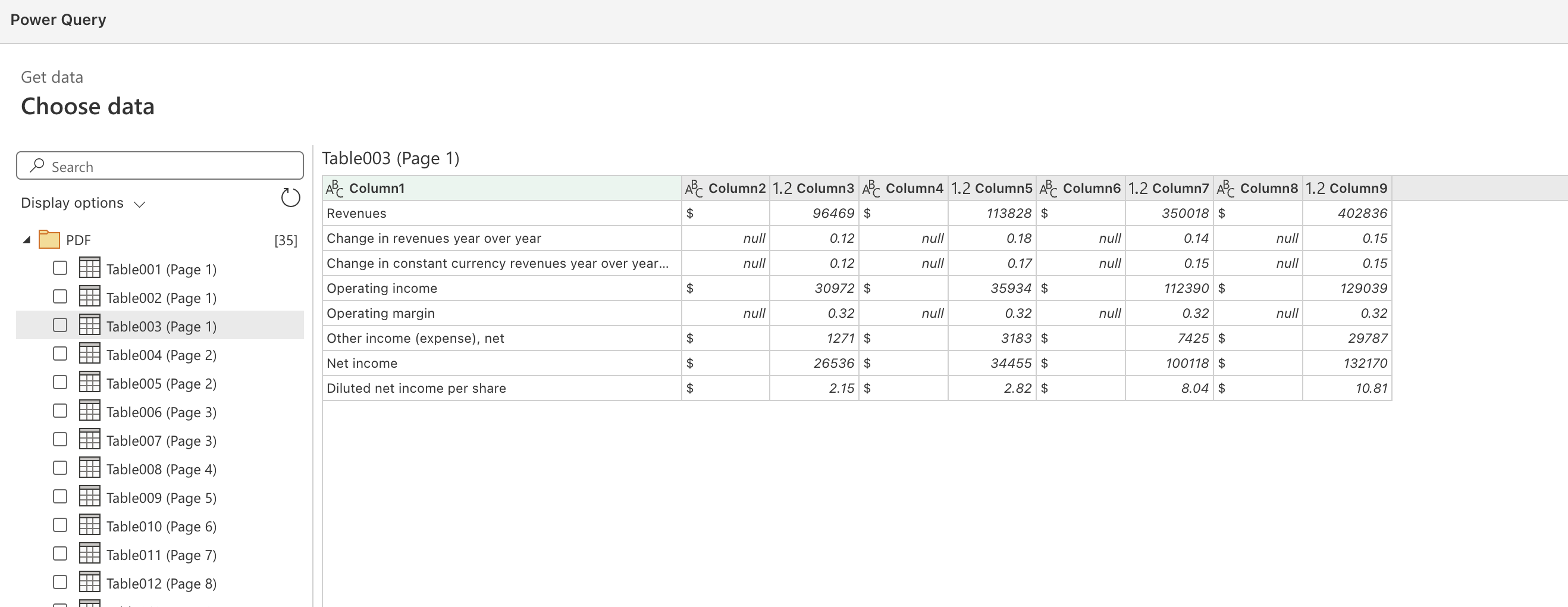
What I liked: No extra software needed. Table detection is surprisingly good for simple, gridlined tables. The data connection is refreshable — update the PDF and re-import.
Where it struggles:
- Not available on Mac
- Tables without visible borders confuse the detector
- Multi-page tables load as separate fragments
- Scanned PDFs are invisible to Power Query
| Speed | Accuracy | Cost | Scanned PDFs |
|---|---|---|---|
| 2-5 min | Medium-High | Free (with Excel) | No |
Verdict: Best free option for Windows users with straightforward, gridlined tables.
Method 3: Copy Through Word (Free — The Formatting Trick)
Microsoft Word has better PDF-to-table parsing than Excel. You can use it as a middleman.
Steps:
- Open Word > File > Open > select your PDF
- Word converts the PDF to an editable document (click OK on the dialog)
- Find the table — it should retain its grid structure
- Select the table, copy it (Ctrl+C)
- Paste into Excel (Ctrl+V)
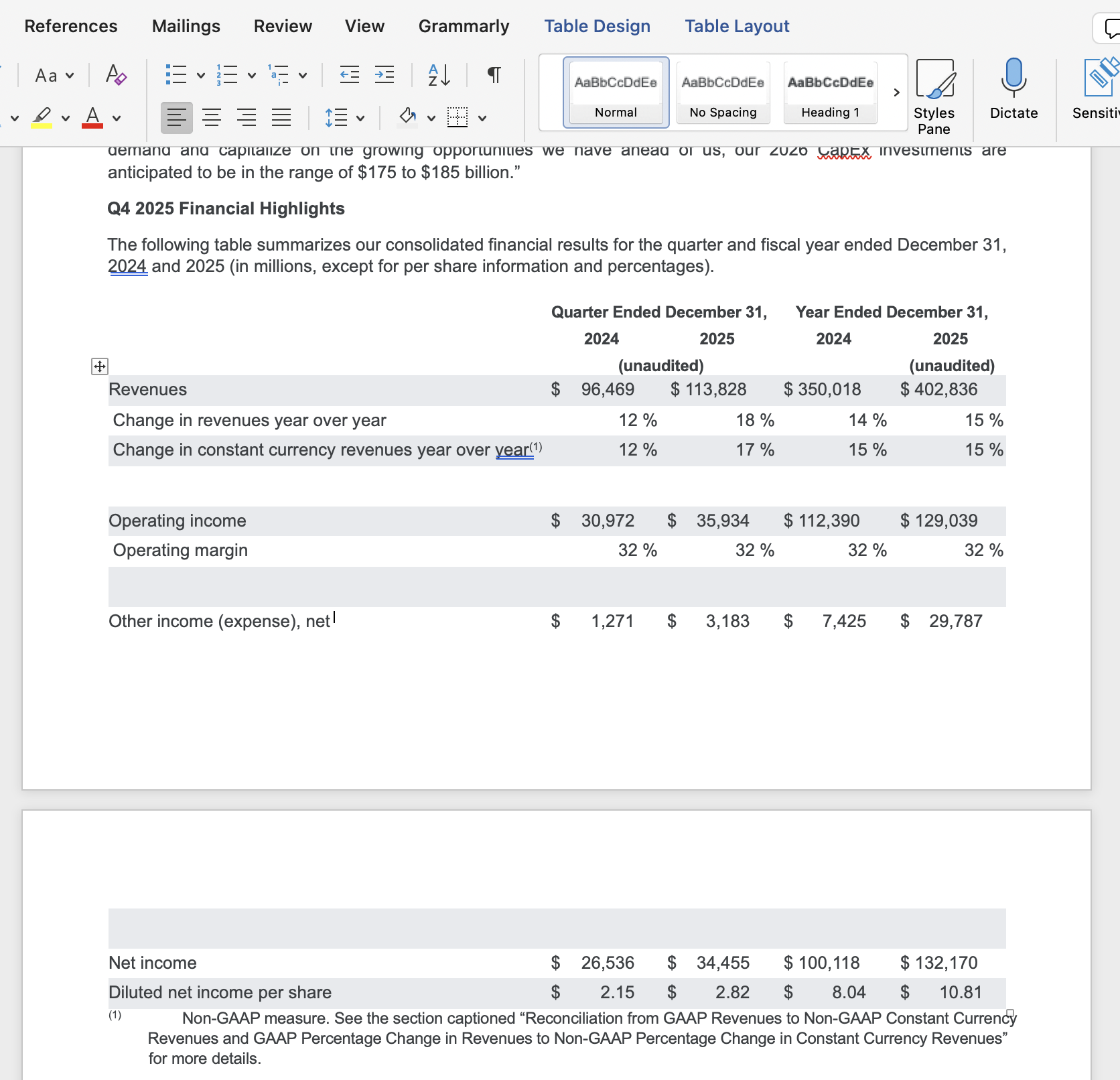
Why this works: Word's PDF parser reconstructs table borders and cell boundaries. When you copy a proper Word table into Excel, each cell maps to the correct spreadsheet cell.
Limitations:
- Complex layouts can shift during conversion
- Headers and footers sometimes get mixed into the table
- Large files (50+ pages) take a long time to convert
- Doesn't work on scanned PDFs
| Speed | Accuracy | Cost | Scanned PDFs |
|---|---|---|---|
| 3-5 min | Medium-High | Free (with Word) | No |
Verdict: A clever workaround if Power Query isn't detecting your table correctly. Worth trying before reaching for paid tools.
Method 4: Google Docs OCR (Free — Works on Scanned PDFs)
Google Docs can open PDFs with OCR, which means it works on scanned documents where copy-paste fails completely.
Steps:
- Upload your PDF to Google Drive
- Right-click the file > Open with > Google Docs
- Google applies OCR and converts the content to text
- Find the table data and copy it
- Paste into Google Sheets or Excel
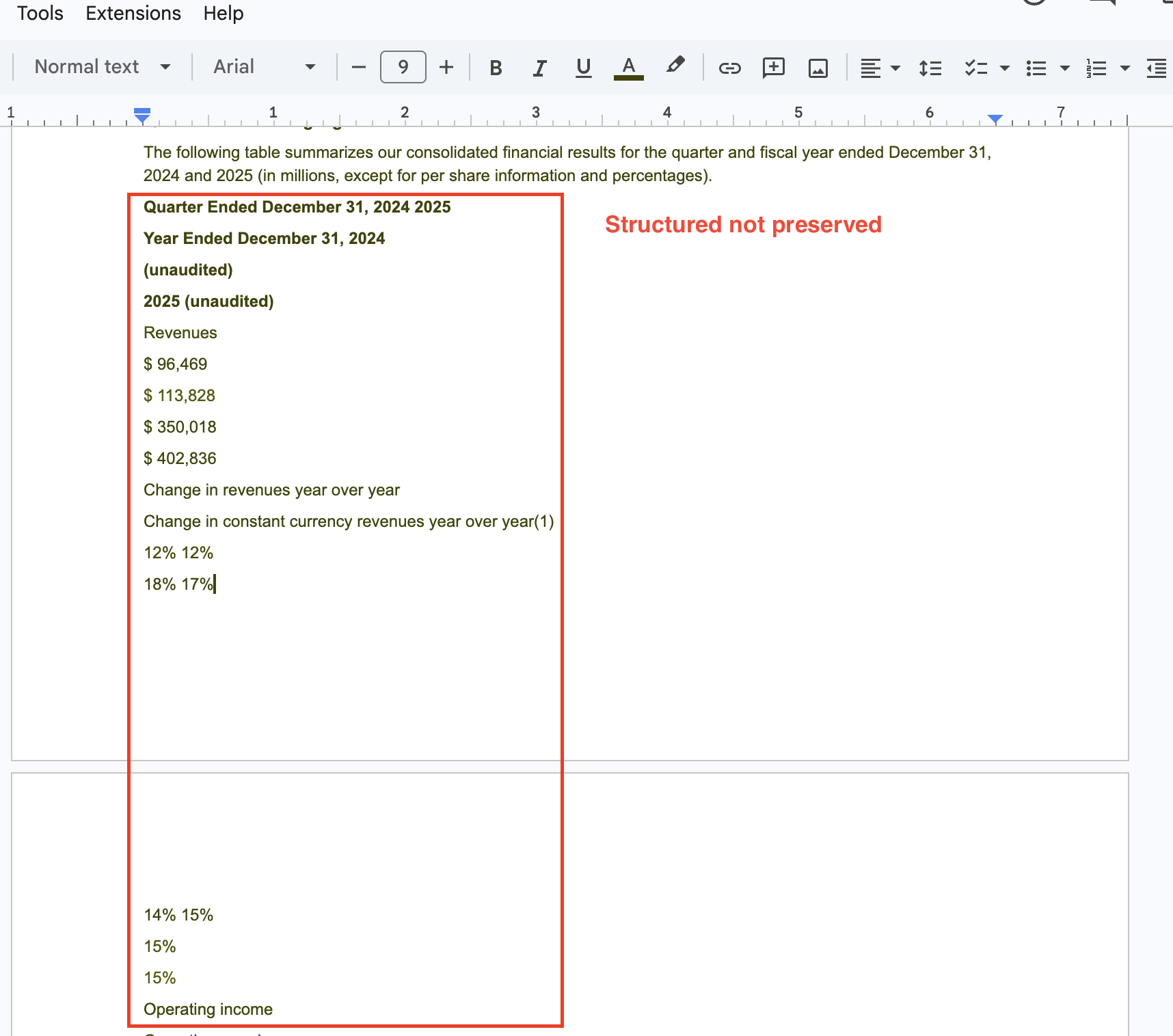
The catch: Google Docs doesn't always preserve table structure. It might convert the table into plain text with tab separators instead of a proper grid. You'll need to clean it up.
When it shines: Scanned PDFs where no other free tool works. The OCR quality is solid for clear, high-resolution scans.
| Speed | Accuracy | Cost | Scanned PDFs |
|---|---|---|---|
| 3-8 min | Medium | Free | Yes (OCR) |
Verdict: The only free method that handles scanned PDFs. Expect cleanup work.
Method 5: Tabula (Free — Open-Source Power)
Tabula is a free desktop app built specifically for pulling tables out of PDFs. It gives you visual control over what you extract.
Steps:
- Download Tabula from tabula.technology
- Upload your PDF
- Draw a box around the table you want
- Choose detection mode: Lattice (gridlines) or Stream (text alignment)
- Preview the result and export to CSV or Excel
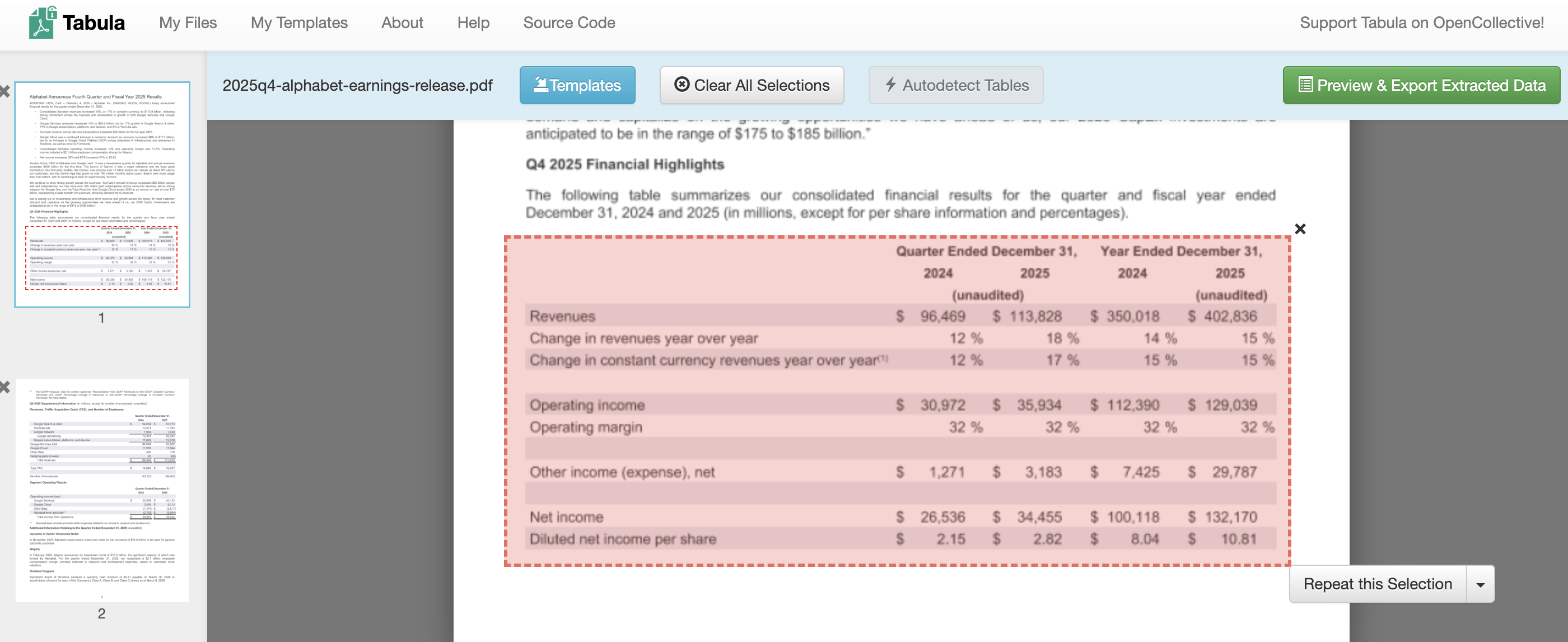
What I liked: You can see exactly what you're extracting before downloading. The two detection modes handle both bordered and borderless tables. Completely free with no usage limits.
Where it struggles:
- Requires Java installation
- No OCR — can't read scanned PDFs
- Interface feels dated
- Limited customization for edge cases (merged cells, nested headers)
| Speed | Accuracy | Cost | Scanned PDFs |
|---|---|---|---|
| 3-5 min | Good | Free | No |
Verdict: Best free dedicated tool. If you extract tables regularly and don't need OCR, Tabula is solid.
Method 6: Data Extractio (Fastest — Handles Everything)
Here's where the frustration ends. Data Extractio is a web tool that combines visual table selection with Camelot-powered extraction and OCR support.
The problem most people hit:
You've tried copy-paste (broken formatting), Power Query (didn't detect the table), and Google Docs (lost the structure). You just need the table in Excel, now.
The manual way:
Open the PDF in Word, fix the conversion errors, copy to Excel, realign the columns, fix the number formats, repeat for the next table.
The faster way with Data Extractio:
- Go to dataextractio.com and upload your PDF
- The PDF viewer displays your document — draw a box around the table
- Pick extraction mode: Lattice (for bordered tables) or Stream (for borderless)
- Click Extract — results appear in under 30 seconds
- Preview the table, edit cells if needed, and download as Excel
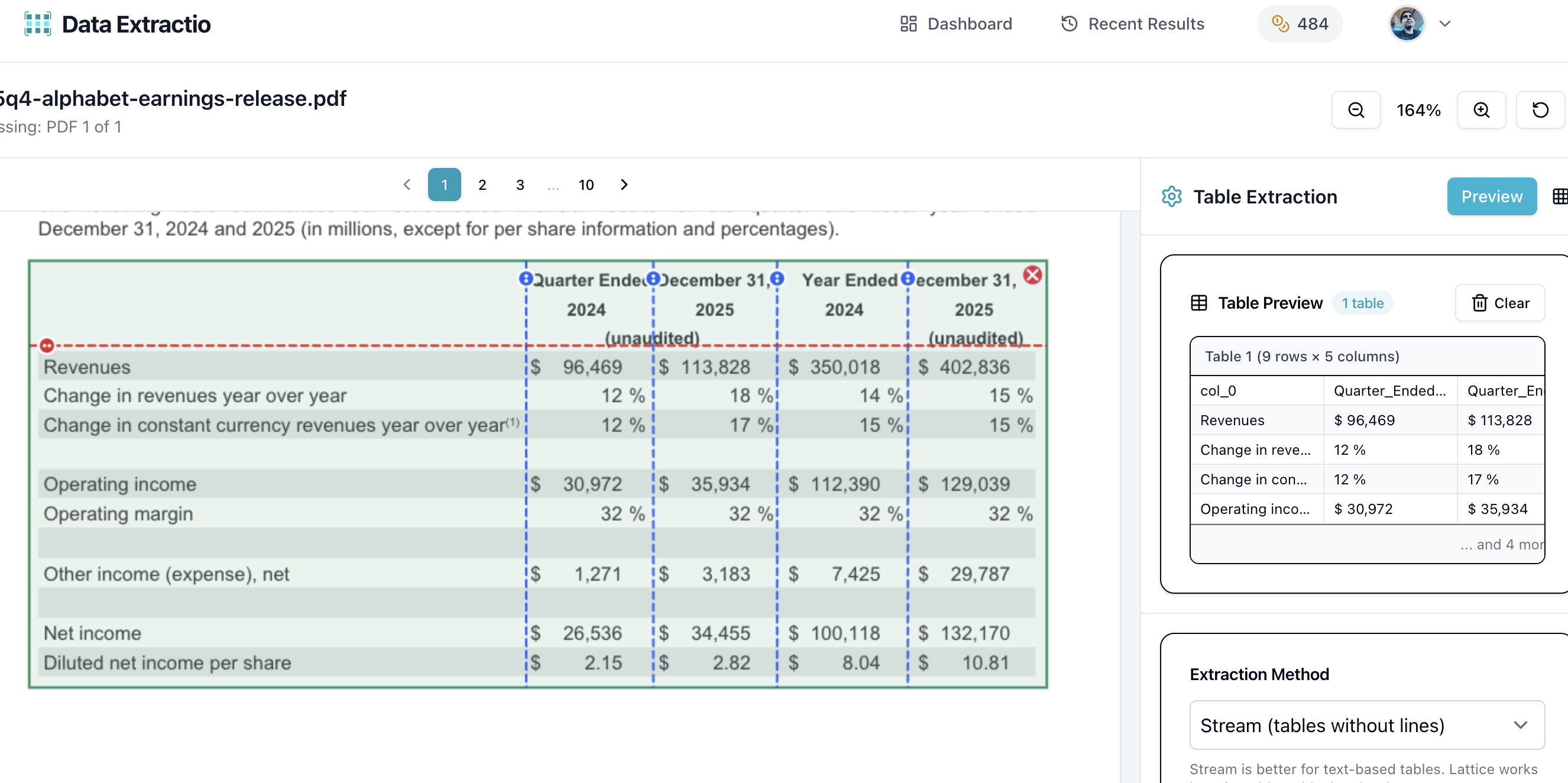
PDF viewer with table selection
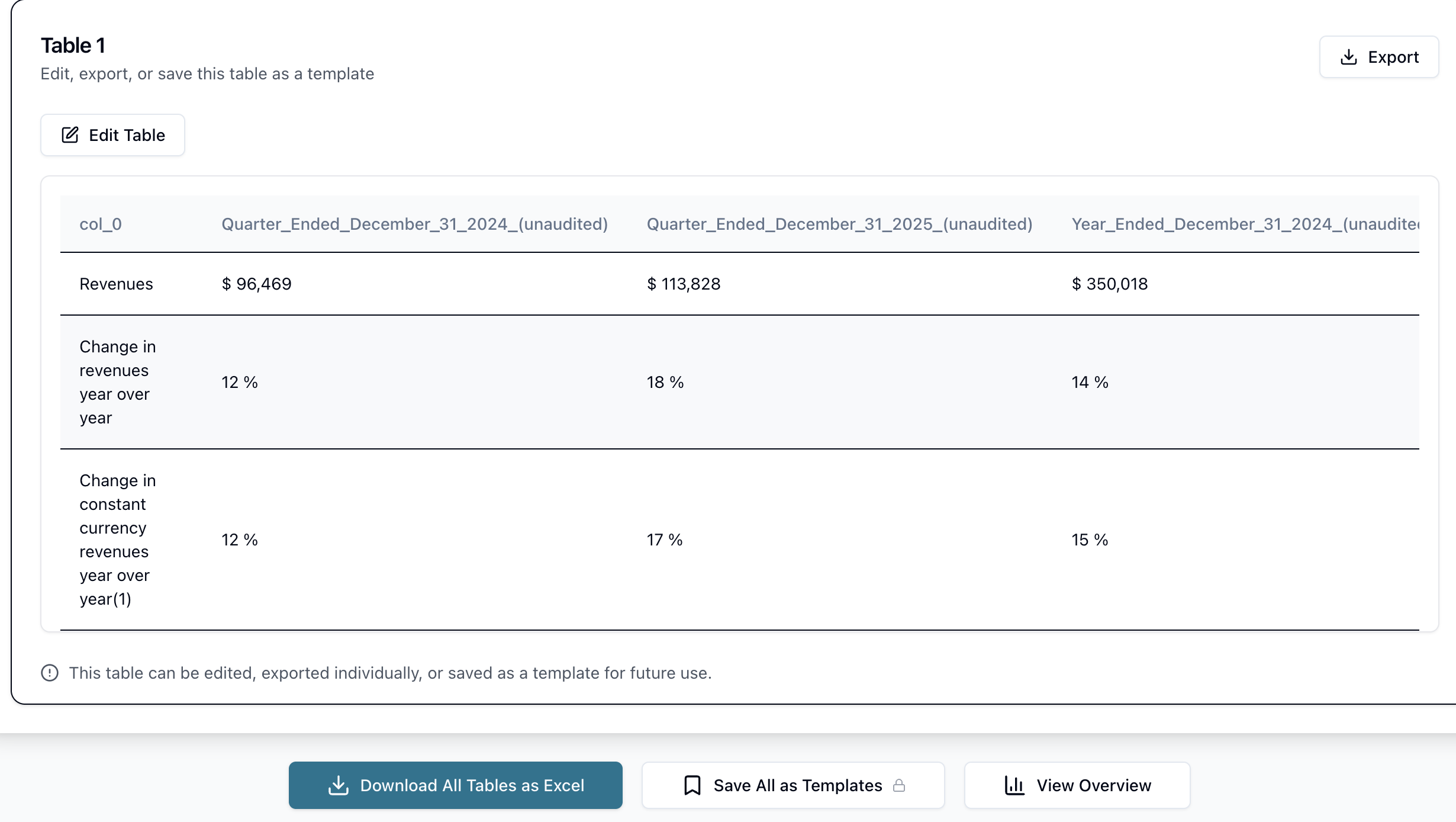
Extracted table results
Why it works where others fail:
- Scanned PDFs: Built-in OCR reads image-based documents
- Header detection: Use the header separator to define column headers for cleaner output
- Borderless tables: Stream mode detects tables by text alignment
- Batch processing: Upload multiple PDFs and extract from all in one session
- Templates: Save extraction settings for recurring documents (same layout every month? Extract with one click)
Pricing that makes sense:
- Free: 15 credits (1 credit = 1 PDF, regardless of page count)
- Starter: $8/month — 100 PDFs
- Pro: $25/month — 350 PDFs
- Credit packs: 50 for $6 (no subscription needed)
A 200-page financial report costs you 1 credit. On per-page services, the same PDF costs $2-20.
| Speed | Accuracy | Cost | Scanned PDFs |
|---|---|---|---|
| 30 sec | High | Free tier / $8+ | Yes (OCR) |
Which Method Should You Use to Copy PDF Tables to Excel?
Here's the decision in 10 seconds:
| Your Situation | Best Method |
|---|---|
| Simple table, one-off task | Power Query (Method 2) |
| No visible borders on the table | Tabula Stream mode (Method 5) |
| Scanned or image-based PDF | Data Extractio (Method 6) |
| Need the table in 30 seconds | Data Extractio (Method 6) |
| Multi-page or complex table | Data Extractio (Method 6) |
| No budget, simple table | Power Query (Method 2) or Word trick (Method 3) |
| On a Mac without Excel | Tabula (Method 5) or Data Extractio (Method 6) |
| Recurring monthly reports | Data Extractio templates (Method 6) |
Full Comparison
| Method | Speed | Accuracy | Cost | Scanned PDFs | Best For |
|---|---|---|---|---|---|
| Copy-Paste | 1 min | Low | Free | No | Last resort |
| Power Query | 2-5 min | Medium-High | Free | No | Windows + simple tables |
| Word Trick | 3-5 min | Medium-High | Free | No | When Power Query misses |
| Google Docs | 3-8 min | Medium | Free | Yes | Free OCR for scans |
| Tabula | 3-5 min | Good | Free | No | Regular extraction, no OCR |
| Data Extractio | 30 sec | High | Free tier | Yes | Everything else |
Troubleshooting: When Your Table Comes Out Wrong
Numbers Merged with Text
Symptom: "Revenue2024Q1" instead of "Revenue | 2024 | Q1"
Fix: Your table has no visible gridlines. Switch from Lattice to Stream mode in Tabula or Data Extractio. Stream detects columns by whitespace alignment instead of border lines.
All Data in One Column
Symptom: Every row pastes into cell A1, A2, A3... with no column separation.
Fix: After pasting, use Excel's Text to Columns (Data tab > Text to Columns > Delimited > Tab or Space). Or skip the hassle — use Power Query or Data Extractio to import with proper structure.
Missing Rows or Columns
Symptom: The extracted table has fewer rows than the PDF.
Fix: The selection area might not cover the full table. In Tabula or Data Extractio, redraw the selection box to include the complete table with all headers and footers.
Scanned PDF Won't Copy at All
Symptom: You can't select or highlight any text in the PDF.
Fix: The PDF is an image scan. You need OCR. Use Data Extractio (built-in OCR), Google Docs, or Adobe Acrobat Pro. For best results with OCR, ensure the scan resolution is at least 300 DPI.
Multi-Page Table Splits Into Fragments
Symptom: Each page extracts as a separate table with repeated headers.
Fix: Most tools extract per-page. After extraction, remove duplicate header rows and merge the tables in Excel. Data Extractio lets you select areas across pages and handles the merge automatically.
Tips to Get Better Results Every Time
Check if your PDF is native or scanned. Try selecting text — if you can't, it's scanned and you need OCR. This single check saves you from trying methods that will never work.
Use Lattice mode for bordered tables, Stream for borderless. Tools like Tabula and Data Extractio offer both. Wrong mode = wrong output.
Preview before downloading. Every good extraction tool has a preview. Check the first few rows for alignment issues before committing to the export.
For recurring reports, save a template. If you extract the same table layout monthly (financial statements, inventory reports), Data Extractio's template feature saves your settings. One click next time.
Frequently Asked Questions
How do I copy a table from PDF to Excel without losing formatting?
Use Excel's Power Query (Data > Get Data > From PDF) for simple tables, or Data Extractio for complex ones. Both read the table structure from the PDF rather than relying on copy-paste, so columns and rows stay intact.
Can I copy a table from a scanned PDF to Excel?
Yes, but you need OCR. Free option: upload to Google Drive and open with Google Docs. Better option: use Data Extractio, which has built-in OCR and preserves the table grid. Standard copy-paste and Power Query cannot read scanned PDFs.
Why does my PDF table paste into one column in Excel?
PDFs don't have cell boundaries like spreadsheets. When you paste, Excel treats everything as plain text. Use Data > Text to Columns to split it, or import through Power Query or Data Extractio instead of pasting.
Is there a free way to change a PDF table into Excel?
Several. Excel Power Query is free (included with Excel on Windows). Tabula is free and open-source. Google Docs is free and handles scanned PDFs. Data Extractio offers 15 free credits — enough for 15 PDFs of any size.
How do I copy multiple tables from the same PDF?
Power Query shows all detected tables in the Navigator — select the ones you need. In Tabula or Data Extractio, draw separate selection boxes around each table. Data Extractio also supports batch uploads if you have multiple PDF files.
Whether you're pulling quarterly financials, research data, or invoice line items, one of these six methods will get your PDF table into Excel cleanly. For a deeper comparison of 8 extraction tools (including Camelot, Nanonets, and Adobe Acrobat), see our complete guide to extracting tables from PDFs. For most people, Power Query handles simple cases and Data Extractio handles everything else.