How to Extract Tables from PDF Files: Complete Guide [2026]
The fastest way to extract tables from a PDF is to use an online tool like Data Extractio — upload your PDF, select the table area, and download Excel or CSV in under 30 seconds. For bulk or programmatic extraction, Python libraries Camelot and Tabula are free and powerful. Below we rank 8 methods by accuracy, speed, and cost.
If you've ever tried to extract data from a PDF table, you know the frustration: copy-paste destroys formatting, manual retyping takes hours, and the data you need is trapped in an uneditable format.
Whether you're a data analyst working with financial reports, a researcher parsing academic papers, or a business professional dealing with invoices, extracting tables from PDFs shouldn't be this hard.
In this guide, I'll show you 8 proven methods to extract tables from PDF files—from free open-source tools to AI-powered solutions—so you can choose the right approach for your needs.
What you'll learn:
- ✓Free vs. paid extraction tools
- ✓When to use each method
- ✓Step-by-step processes
- ✓Real cost comparisons
- ✓Which solution saves you the most time and money
8 Ways to Extract Tables from PDF Files (Ranked by Ease + Cost)
1. Manual Copy-Paste (Free - The Baseline)
How it works: Open your PDF, click and drag to select the table, copy (Ctrl+C or Cmd+C), paste into Excel or Google Sheets, then manually fix the formatting disasters that inevitably occur.
Best for:
- - 1-2 simple tables with clean structure
- - One-off tasks where accuracy isn't critical
- - People with unlimited patience
Pros
- + Zero cost
- + No software installation
- + Works anywhere
Cons
- - Extremely time-consuming
- - Destroys cell formatting
- - Error-prone with merged cells
- - Impossible with scanned documents
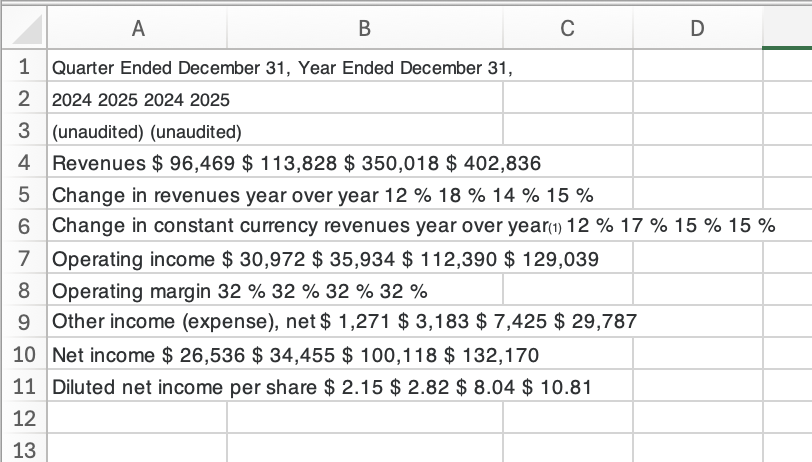
2. Microsoft Excel Power Query (Free - Built-In)
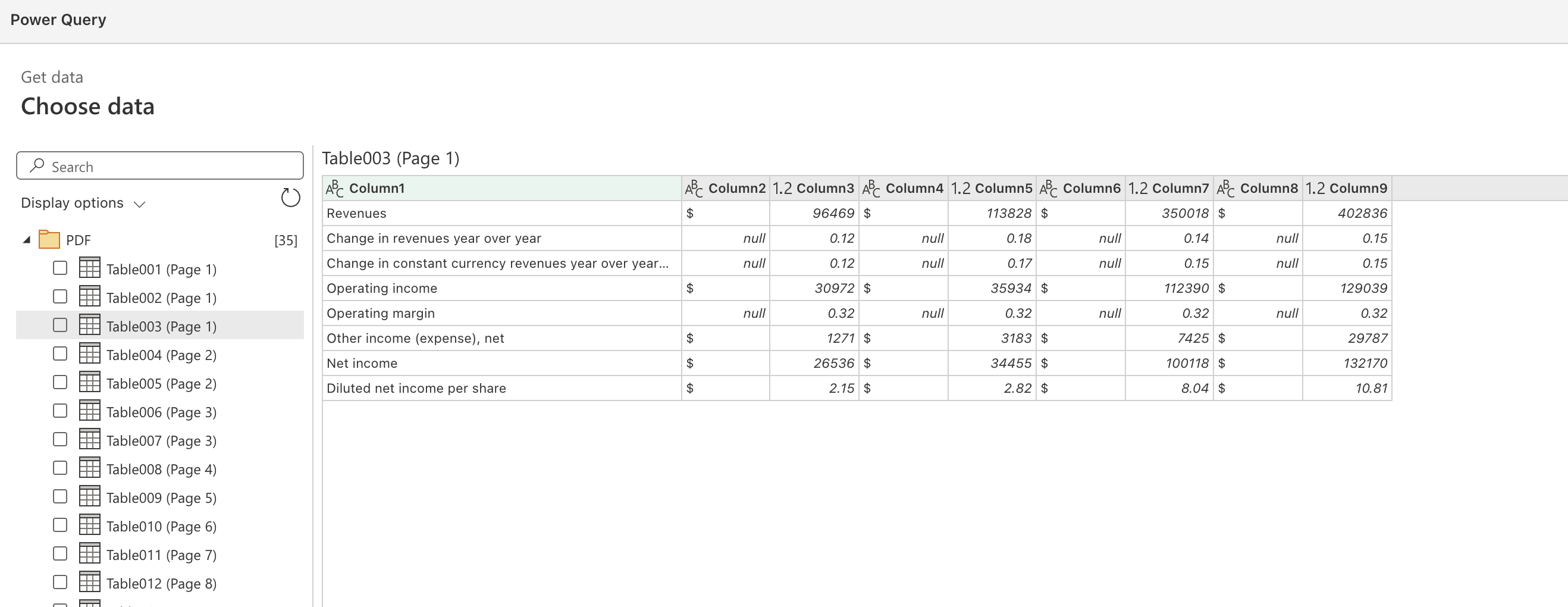
How it works: If you have Excel (Windows only), you can import PDFs directly using Power Query:
- Go to Data > Get Data > From File > From PDF
- Select your PDF file
- Excel detects tables automatically in the Navigator window
- Choose the tables you want
- Click Load to import into Excel
Best for:
- - Windows users with Microsoft 365 or Excel 2016+
- - Business professionals in the Excel ecosystem
- - Simple to moderately complex tables
Pros
- + Built into Excel—no extra software
- + Automatic table detection
- + Good for simple tables
- + Refreshable data connection
Cons
- - Windows only (not available on Mac)
- - Struggles with complex or multi-page tables
- - Cannot handle scanned documents
- - You can't choose what to extract
3. Tabula (Free - Most Popular Open-Source Tool)
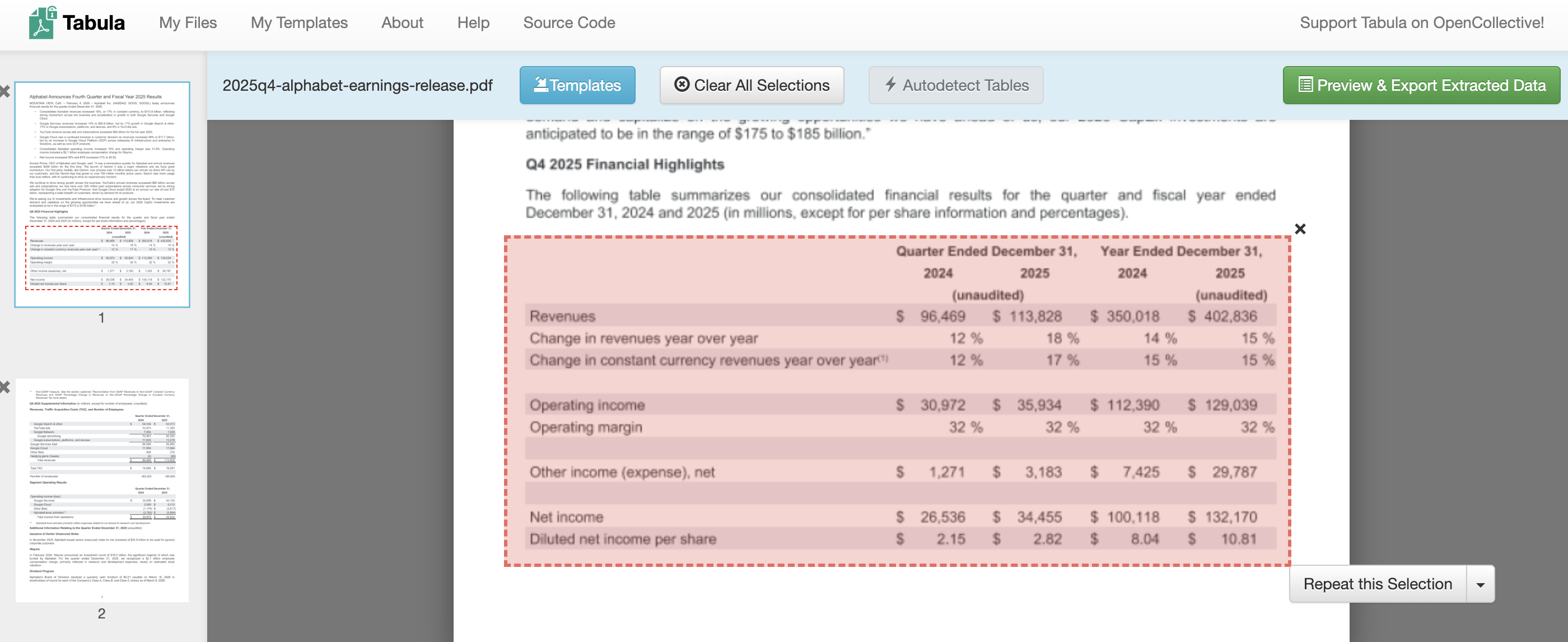
How it works: Tabula is a free, open-source desktop application designed specifically for liberating data tables from PDFs:
- Download and install Tabula (Mac, Windows, Linux)
- Upload your PDF file
- Click and drag to draw a box around the table
- Preview the extracted data
- Export as CSV, Excel, or JSON
Best for:
- - Tech-savvy users comfortable with desktop apps
- - Journalists and researchers (used by NYT, ProPublica)
- - Batch processing multiple PDFs
- - People who want complete control and privacy
Pros
- + Completely free and open-source
- + Works offline (data privacy)
- + Preview function ensures accuracy
- + Cross-platform (Mac, Windows, Linux)
Cons
- - Requires installation
- - Cannot handle scanned documents
- - Learning curve for complex tables
- - Very basic interface, limited customization
4. Smallpdf (Freemium - Easiest Online Converter)
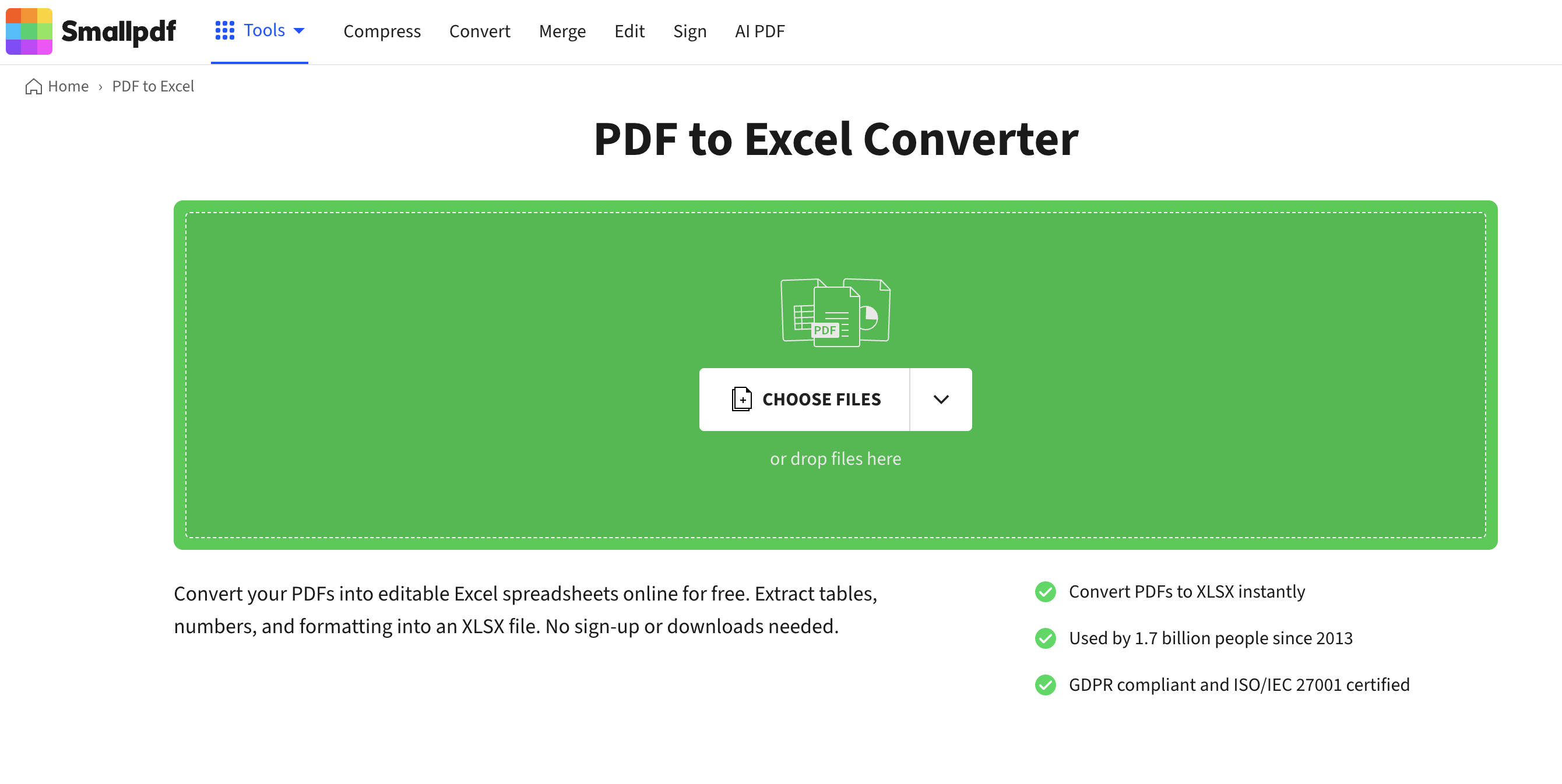
How it works: Smallpdf is a web-based PDF toolkit with a simple drag-and-drop interface:
- Go to smallpdf.com/pdf-to-excel
- Upload your PDF (drag and drop)
- Wait for automatic conversion
- Download your Excel file
Best for:
- - Quick, one-off conversions
- - Users who prefer web tools over installation
- - Simple tables that don't require fine-tuning
Pros
- + Extremely easy to use
- + No software installation
- + Works on any device with a browser
- + OCR support for scanned docs (Pro)
Cons
- - Free tier limited (2 files/day)
- - Requires internet connection
- - Data uploaded to cloud (privacy concern)
- - Less control over extraction settings
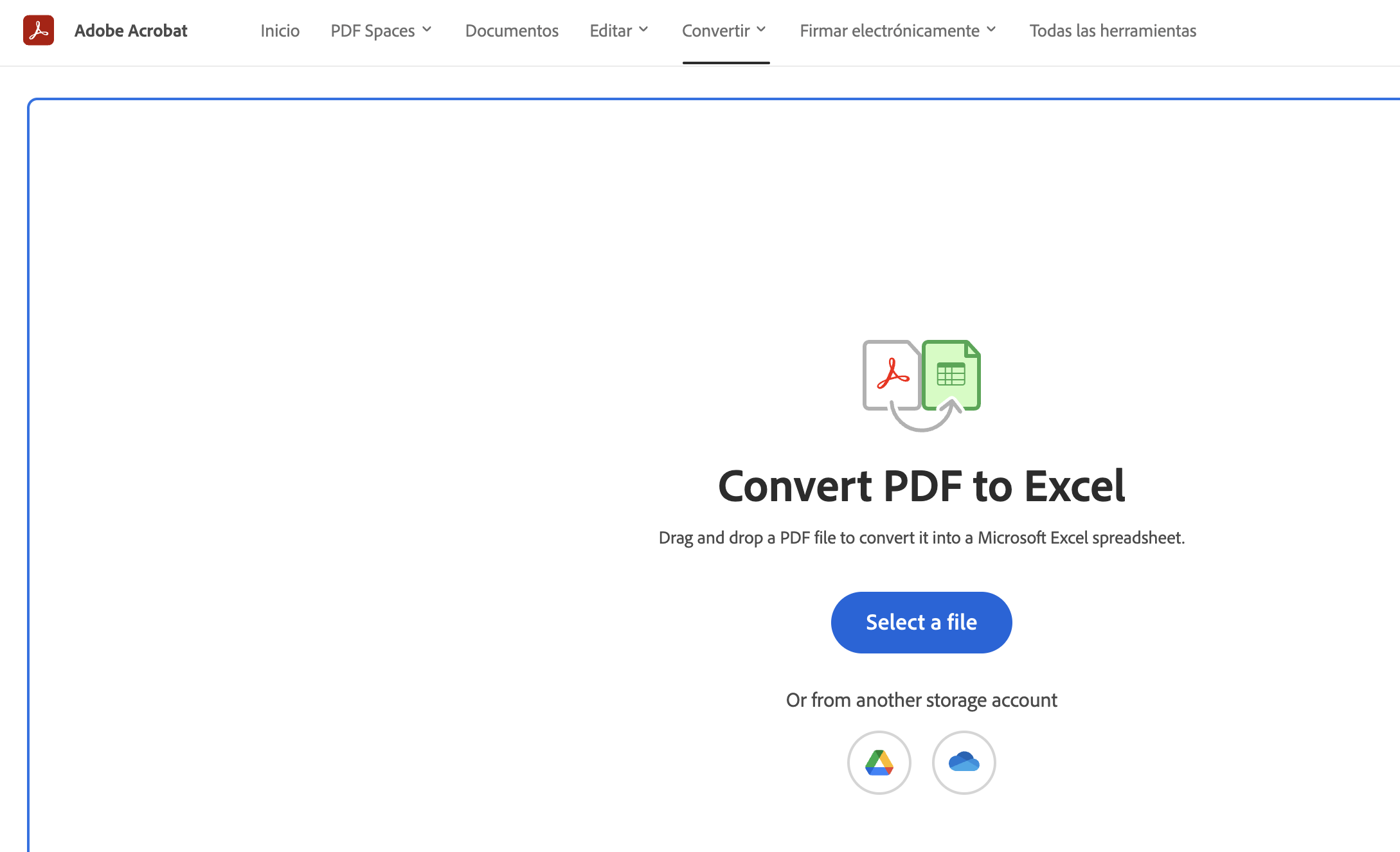
5. Adobe Acrobat Pro (Paid - Enterprise Standard)
How it works: Adobe Acrobat Pro is the industry-standard PDF editor with built-in table extraction:
- Open PDF in Acrobat Pro
- Select File > Export To > Spreadsheet > Microsoft Excel
- Or use the selection tool to highlight specific tables
- Right-click > Export Selection As... > Choose format
Best for:
- - Companies already using Adobe Creative Cloud
- - Enterprise users needing comprehensive PDF editing
- - Users working with complex documents
Pros
- + Brand recognition and trust
- + Full PDF editing suite
- + OCR included for scanned documents
- + Enterprise-grade security
Cons
- - Expensive for extraction-only use
- - Subscription required (no one-time purchase)
- - Overkill if you only need table extraction
- - Steeper learning curve
6. Nanonets (AI-Powered - Best for Scanned PDFs)
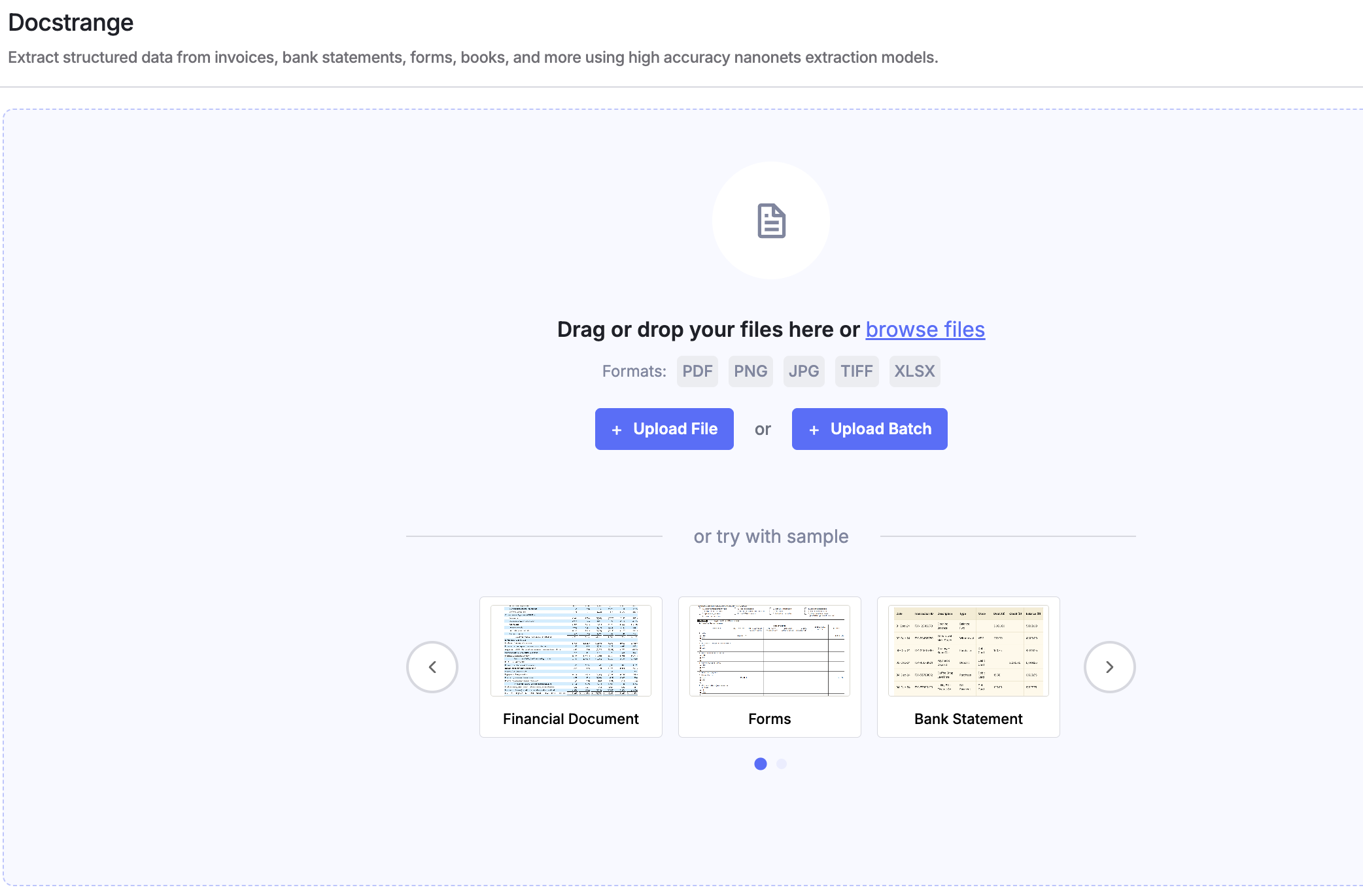
How it works: Nanonets uses enterprise-grade AI to extract tables from any PDF, including scanned documents:
- Upload your PDF to tools.nanonets.com
- AI automatically detects and extracts tables
- Review and edit if needed
- Export to Excel, CSV, or JSON
Best for:
- - Scanned invoices, receipts, bank statements
- - Complex, multi-format documents
- - Users who need high accuracy on difficult PDFs
- - Enterprise automation workflows
Pros
- + Handles scanned documents extremely well
- + AI adapts to different table formats
- + Used by enterprises (Volkswagen, Schneider Electric)
- + API available for automation
Cons
- - More expensive than basic tools
- - Enterprise pricing not transparent
- - May be overkill for simple tables
7. Camelot (Python Library - For Developers)
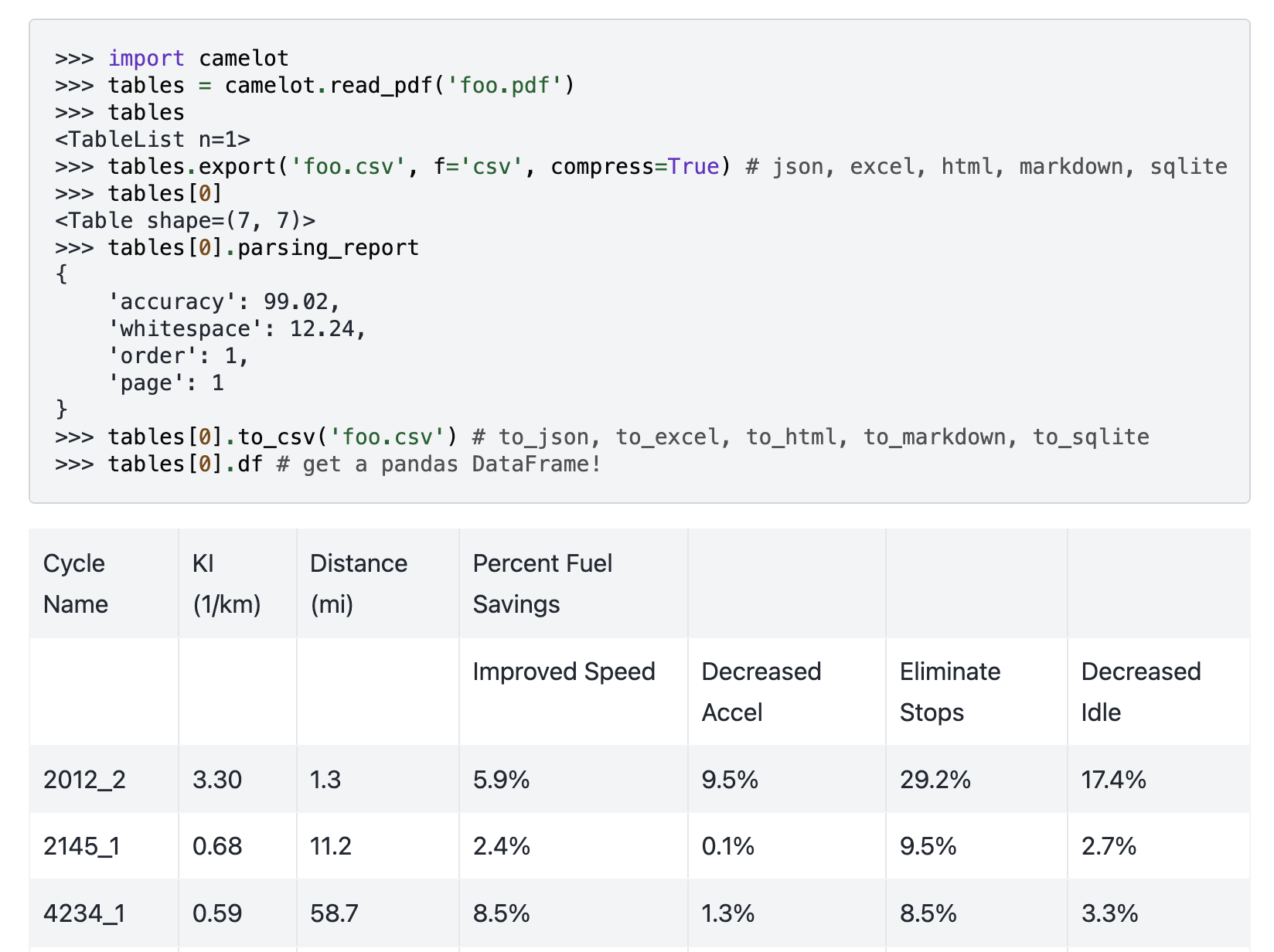
How it works: Camelot is a powerful Python library for programmatic table extraction:
import camelot

# Extract tables from PDF
tables = camelot.read_pdf('document.pdf', flavor='lattice')

# Export first table to CSV
tables[0].to_csv('output.csv')

# Or export all tables to Excel
tables.export('output.xlsx', f='excel')
Two extraction modes:
- Lattice: Detects visible table lines and gridlines
- Stream: Analyzes text positioning when lines are absent
Best for:
- - Developers and data scientists
- - Automated data pipelines
- - Batch processing hundreds/thousands of PDFs
- - Custom extraction workflows
Pros
- + Completely free
- + Highly configurable
- + Exports to CSV, JSON, Excel, HTML, SQLite
- + Integrates with pandas
Cons
- - Requires Python programming knowledge
- - OS-level dependencies needed
- - No GUI (command-line only)
- - Cannot handle scanned documents
8. Data Extractio
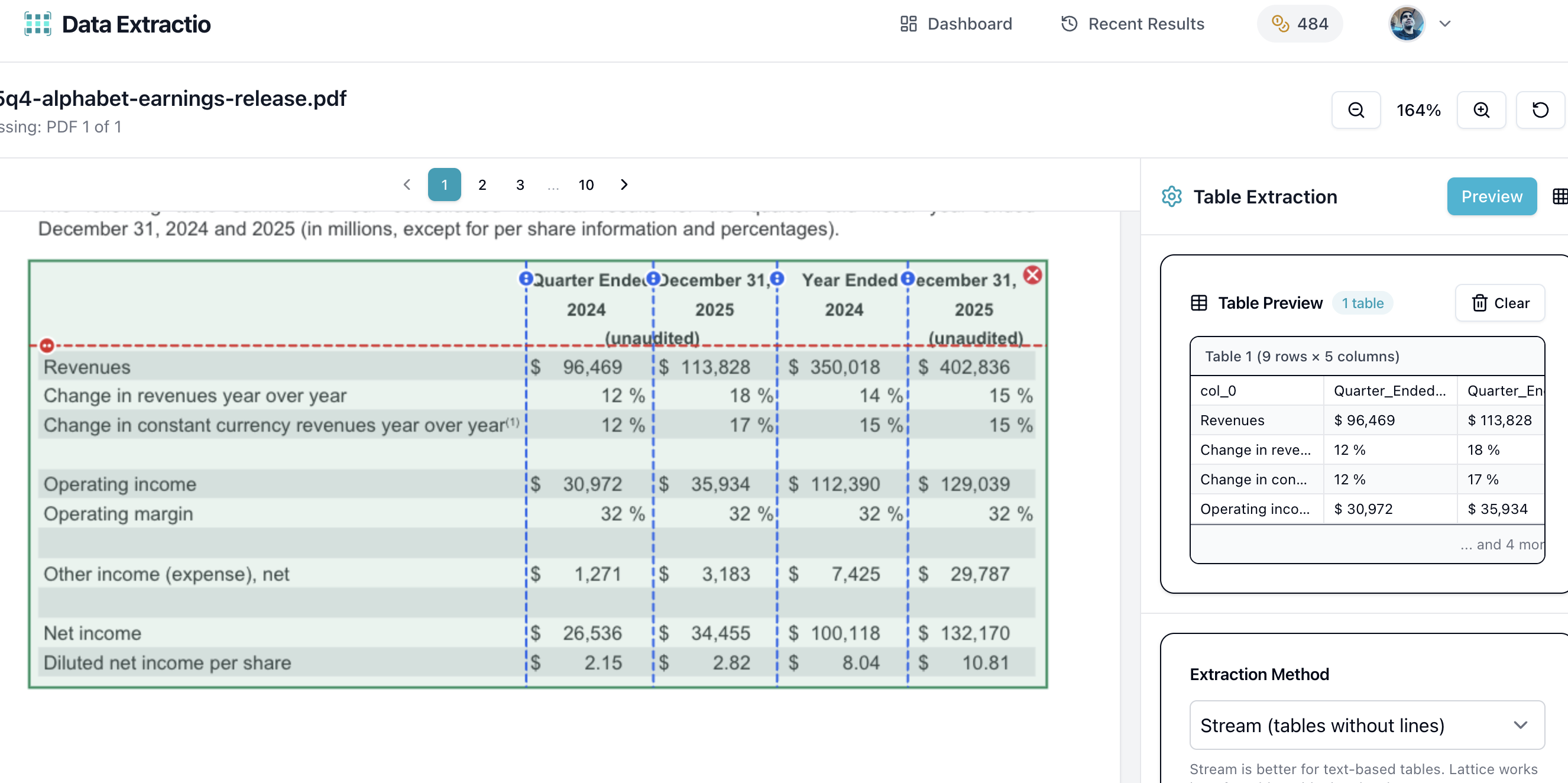
RECOMMENDEDHow it works: Data Extractio combines the power of Camelot with OCR support and a user-friendly interface:
- Upload your PDF (drag and drop)
- View your PDF and select table areas (or use auto-detect)
- Configure extraction settings (lattice/stream, OCR for scanned docs)
- Extract tables in 30 seconds
- Download as Excel, CSV, or JSON
Best for:
- - Everyone: non-technical users AND developers
- - Large multi-page PDFs
- - Users who need ease-of-use AND power
- - Budget-conscious businesses
Why Data Extractio is Different:
Per-PDF Pricing vs. Per-Page Pricing:
- Competitors charge $0.01-0.10 per page
- A 100-page PDF on PDFTables = $10
- Same PDF on Data Extractio = 1 credit = $0.08-0.24
- You save 98% on large documents
Best of All Worlds:
- Easy as Smallpdf (no coding required)
- Powerful as Camelot (same underlying technology)
- OCR for scanned documents (like Nanonets)
- Fair pricing (unlike Adobe's $29/month subscription)
Pros
- + Revolutionary per-PDF pricing (not per-page)
- + Handles text-based AND scanned PDFs
- + User-friendly interface
- + Template system for recurring extractions
- + Batch processing
Cons
- - Newer platform (less brand recognition)
- - Smaller user community compared to Tabula
Quick Comparison Table
| Tool | Cost | Scanned PDFs | Best For | Ease of Use |
|---|---|---|---|---|
| Manual Copy-Paste | Free | No | 1-2 simple tables | Easy |
| Excel Power Query | Included | No | Windows users with Excel | Easy |
| Tabula | Free | No | Tech-savvy users | Moderate |
| Smallpdf | $9/mo | Yes (Pro) | Quick online conversions | Very Easy |
| Adobe Acrobat | $29/mo | Yes | Enterprise PDF editing | Moderate |
| Nanonets | $$$$ | Yes | Enterprise AI extraction | Easy |
| Camelot | Free | No | Developers, automation | Advanced |
| Data Extractio | $8-25/mo | Yes | Everyone - best value | Very Easy |
Tips for Successful PDF Table Extraction
1. Check if Your PDF is Text-Based or Scanned
Before choosing a tool, determine your PDF type:
- Text-based: You can click and drag to select text → Use Tabula, Camelot, or Data Extractio
- Scanned: Text is part of an image → Use tools with OCR (Smallpdf Pro, Adobe, Nanonets, Data Extractio)
Quick test: Try selecting text with your cursor. If you can't, it's scanned.
2. Clean Up Extracted Data
Even the best tools sometimes misalign columns. After extraction:
- - Check for merged cells
- - Verify column headers
- - Remove extra blank rows
- - Fix number formatting
3. Use Preview Functions
Tools like Tabula and Data Extractio let you preview before exporting. Always preview first to ensure you're selecting the right table area.
4. Consider Batch Processing
If you extract tables regularly, invest time in:
- - Learning Camelot for full automation
- - Creating templates in Data Extractio
- - Using APIs for integration with your workflows
Cost Analysis: Which Tool Saves You the Most?
Let's compare real-world costs for extracting tables from 10 PDFs per month:
Scenario A: Small PDFs (5 pages avg)
- Manual: Free (but 50-300 min of your time)
- Tabula: Free
- Smallpdf: $9/month
- Adobe: $29/month
- Data Extractio: Free tier covers 10 PDFs
Winner: Tabula (free) or Data Extractio (free tier)
Scenario B: Large PDFs (100 pages avg)
- Manual: Impossible without losing sanity
- Tabula: Free (but time-consuming)
- PDFTables (per-page): $100/month
- Smallpdf: $9/month (if not scanned)
- Adobe: $29/month
- Data Extractio: $0.80-2.40/month
Winner: Data Extractio saves $97.60/month vs per-page pricing!
My Recommendation
After testing all these tools extensively, here's what I recommend:
For quick, one-off tasks:
Use Smallpdf (free tier) or Excel Power Query (if you have Windows)
For regular extraction (free):
Use Tabula (desktop) or Camelot (if you code)
For scanned documents:
Use Data Extractio (best value) or Nanonets (enterprise)
For large, multi-page PDFs:
Use Data Extractio — per-PDF pricing saves 98% compared to competitors
For developers building automation:
Start with Camelot (free) — Data Extractio API coming soon
Conclusion
Extracting tables from PDFs doesn't have to be painful. Whether you're a student on a budget (use Tabula), a developer automating workflows (use Camelot), or a business professional who values time over money (use Data Extractio), there's a tool that fits your needs.
The key is matching the tool to your specific use case:
- Free and simple? Tabula
- Scanned documents? Data Extractio or Nanonets
- Large PDFs? Data Extractio (per-PDF pricing is revolutionary)
- Automation? Camelot
Frequently Asked Questions
Can I extract tables from scanned PDFs?
Yes, but you need a tool with OCR (Optical Character Recognition). Smallpdf Pro, Adobe Acrobat, Nanonets, and Data Extractio all support scanned documents. Free tools like Tabula and Camelot only work with text-based PDFs.
What's the difference between per-page and per-PDF pricing?
Per-page pricing charges for every page in your PDF ($0.01-0.10/page). A 100-page PDF costs $1-10. Per-PDF pricing (Data Extractio) charges once per document regardless of page count—usually $0.08-0.24 per PDF. For large documents, per-PDF saves 90-98%.
Which tool is best for developers?
Camelot (Python library) for local automation.
Can I batch process multiple PDFs?
Yes. Tabula, Camelot, and Data Extractio all support batch processing. Upload multiple files and extract tables from all at once.
Is my data secure?
Desktop tools (Tabula, Camelot) keep data local. Cloud tools (Smallpdf, Data Extractio) use encryption. For sensitive documents, use desktop tools or check the provider's security certifications.